7Z successfully extracted
Click on a file to download it.
File Type
ZIP file
File Size
kb


Compress files to zip
Create zip file from multiple files
Unzip your file
Create zip from a folder
Merge multiple ZIP files into one
Split ZIP file into smaller parts or separate files
Encrypt ZIP files with 256-bit AES password protection
Create military-grade AES-256 encrypted ZIP archives with PBKDF2
Generate MD5, SHA-1, SHA-256, and SHA-512 hashes inside ZIP archives
Decrypt password-protected ZIP archives with known password
Fix corrupted ZIP archives and recover readable files
Decompress GZ files and convert to ZIP format locally
Decompress BZ2 files and convert to ZIP format locally
Convert ZIP archives to 7Z format for better compression
Convert ZIP archives to TAR or TAR.GZ format locally
Batch convert multiple archives between formats locally
Inspect ZIP archive structure and metadata without extracting
Inspect ZIP file headers, central directory, and binary metadata locally
Detect hidden files, appended data, and ZIP bombs in archives locally
Sort ZIP archive contents into category folders based on file extensions
Generate detailed inventories of ZIP contents without extracting (CSV, JSON, TXT, HTML)
Find and remove duplicate files inside ZIP archives using CRC-32 checksums
Verify archive file integrity against expected checksums
Edit ZIP archive comments, file names, and dates without extracting
Add and edit global archive comments and individual file annotations
Batch rename files inside ZIP archives with find-replace and regex
Evaluate ZIP password entropy, estimate crack times, and check breach databases
Scan ZIP archives for structural corruption, CRC mismatches, and header damage



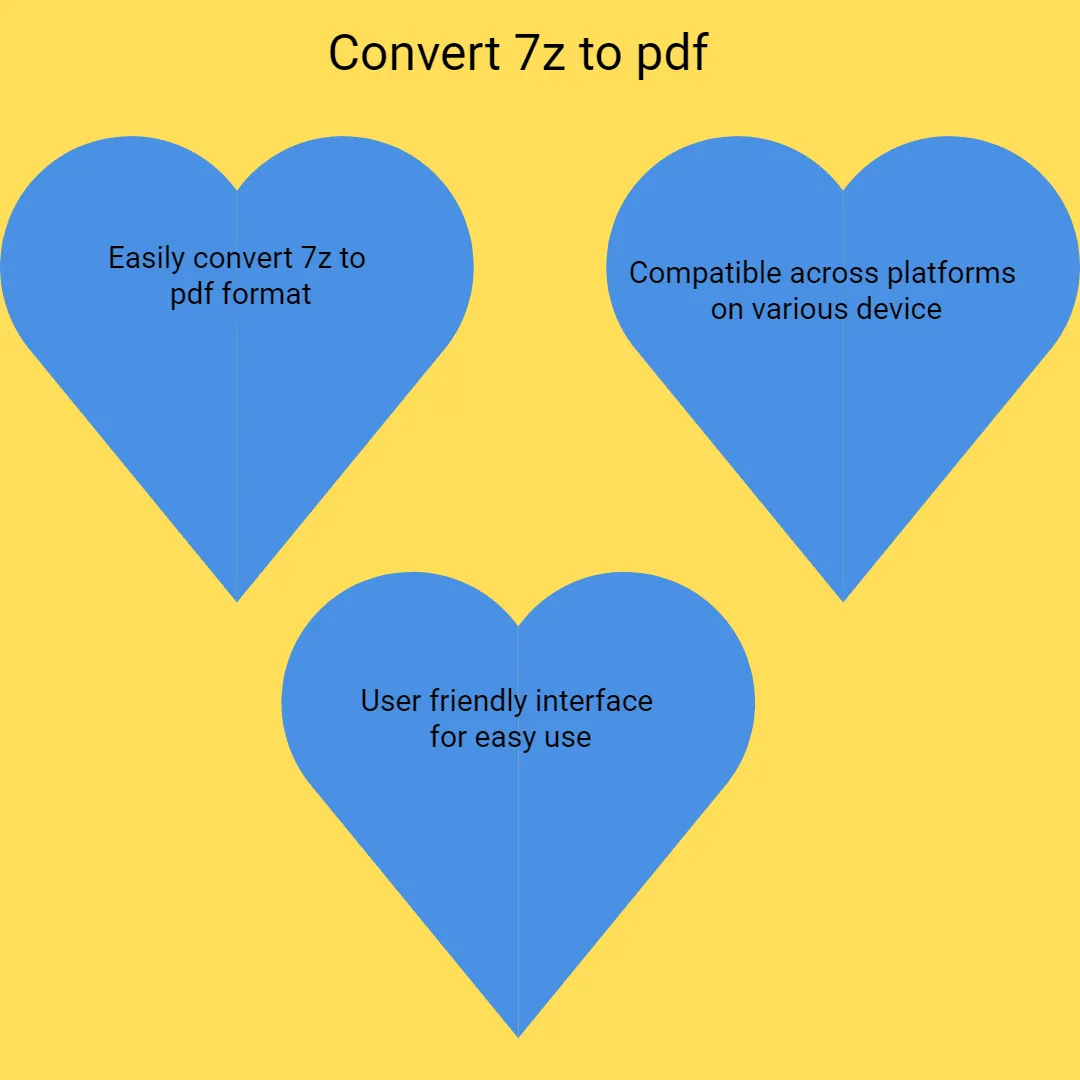
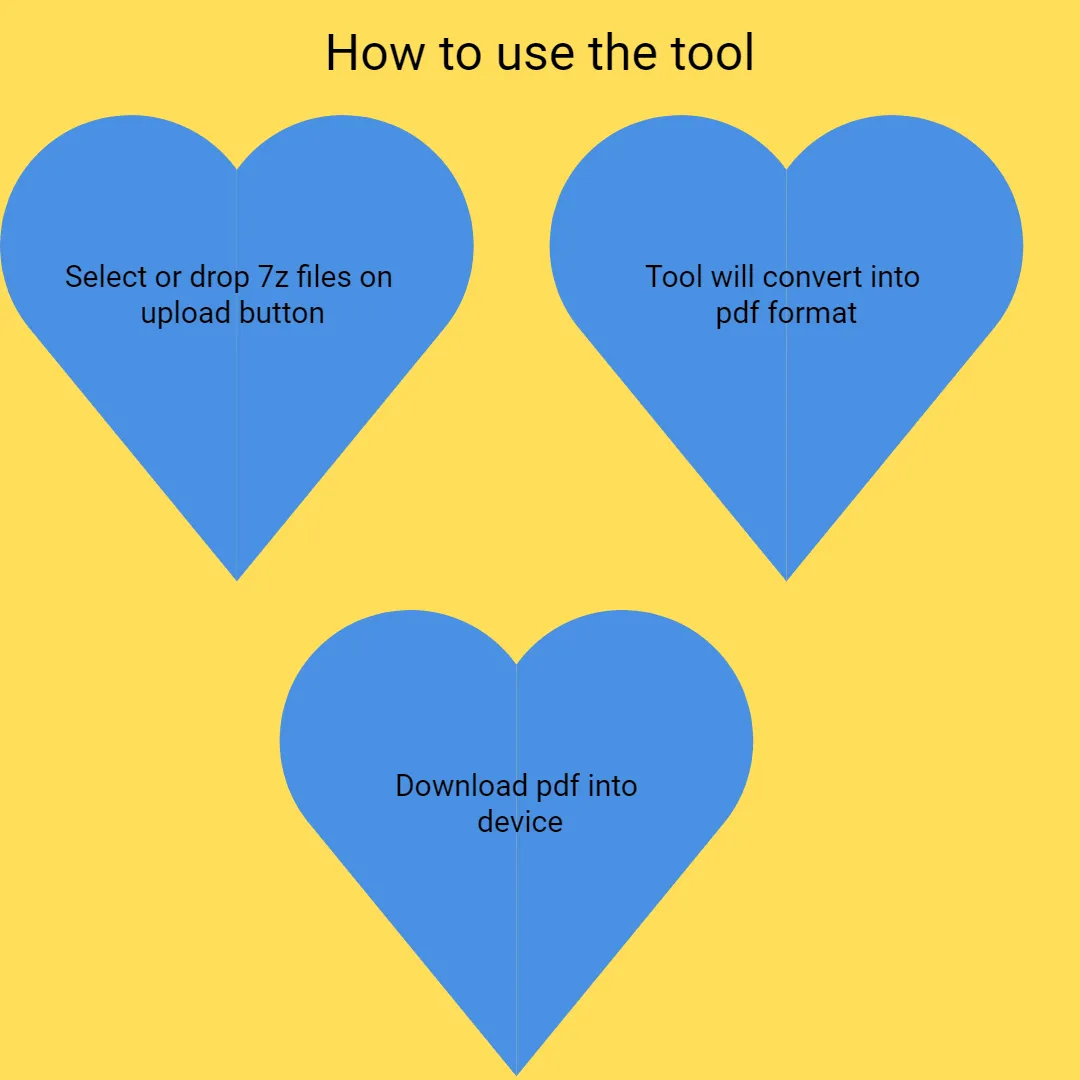
Our tool features an intuitive design that makes extracting PDFs straightforward. Simply upload your 7z file by clicking or dragging into the upload area. Once uploaded, the system automatically extracts all PDF files inside. You can view the list of extracted PDFs immediately on-screen. Download files individually or in bulk with a single click.
Upload your 7z archive containing PDF files and get instant extraction results. The process is fast, taking just seconds for the system to identify and extract PDFs. View all extracted PDFs on-screen immediately after extraction. The tool supports large archives without any delay.
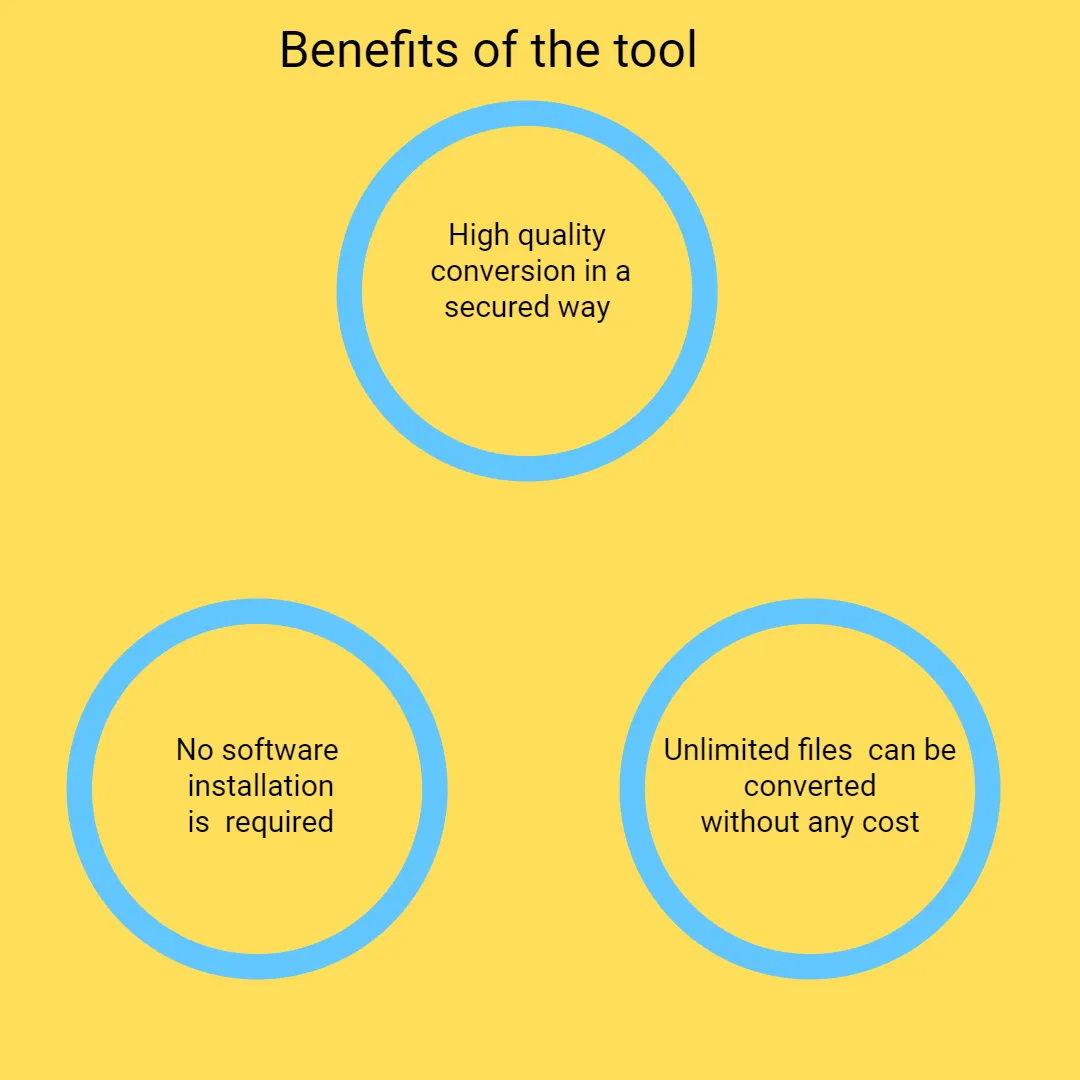
Your files are uploaded securely via encrypted SSL connections. We do not store or share your files; they are processed in real-time and deleted automatically after extraction. Your privacy is our priority, and your data remains confidential. All operations are performed securely on your device. This guarantees your files are private and secure.
Our online tool works perfectly on any device, browser, or operating system. No downloads, installations, or updates are necessary. Compatible with Windows, Mac, Linux, Android, and iOS devices. Supports all major browsers like Chrome, Firefox, Edge, and Safari. The interface is optimized for all screen sizes, ensuring easy access everywhere.
This tool is completely free to use with no hidden charges. There’s no need to create an account, login, or subscribe. Simply visit the website, upload your 7z archive, and extract PDFs instantly. No registration or download is required, just quick access whenever you need it. The service is always free and available for everyone worldwide.
Easily extract PDFs from multiple 7z archives. After extracting files from one archive, you can click “Extract Another File” to process a new archive instantly. Preview PDFs before downloading if needed. Organize your documents effortlessly with simple download options.

Other useful information
Explore our visual guides and infographics
Frequently Asked Questions
Extracting PDFs from 7z files allows easy access to individual documents stored inside compressed archives. It simplifies sharing, viewing, or editing specific PDFs without unpacking the entire archive manually. This process saves time and storage space, especially with large collections of files. Our online tool makes this extraction instant and straightforward. You don’t need any software or technical skills to do it. It’s an efficient way to manage compressed PDF documents quickly.
7z files are compressed archive files created using the 7-Zip compression software. They are used to combine multiple files into a single compressed package, reducing storage space. They are popular for sharing large datasets, backups, and software distributions. Using 7z archives helps organize and transfer multiple files easily. Our tool allows you to extract only the PDF files from these archives easily.
PDF (Portable Document Format) files are widely used for sharing documents in a fixed layout that preserves fonts, images, and formatting. They are common in business, education, and personal use for reports, forms, manuals, and eBooks. PDFs are platform-independent and can be viewed on any device with compatible software. They support features like hyperlinks, encryption, and annotations. Extracting PDFs from archives allows easy viewing, editing, or printing of these documents.
Click the ‘Upload’ button and select or drag your 7z archive into the upload area on our website. You can further upload files from Google Drive or Dropbox. Within seconds, the tool will display all PDF files inside the archive. You can view a list of extracted PDFs and choose to download individual files or the entire set. If you want to extract from another archive, simply click “Extract Another File” and repeat.
Absolutely! Our tool is optimized to handle large 7z archives containing hundreds or thousands of PDFs. There are no restrictions on archive size.
No, our service is entirely web-based. You do not need to download, install, or update any software.
Our tool supports large archives and extensive collections of PDFs without restrictions. You can upload and extract as many files as your archive contains. The process remains fast and reliable regardless of size. This makes it suitable for professional use, such as extracting large document collections or backups.
Yes, if your 7z archive is password-protected, you will be prompted to enter the password during upload. Once entered, the tool will decrypt and extract the PDF files inside. This ensures your protected documents are handled securely. Passwords are not stored or shared, only used temporarily during extraction.
This specific tool is designed to extract only PDF files from your 7z archives. Other file types, such as images, videos, or documents, are not extracted or supported at this time. If your archive contains PDFs, they will be retrieved successfully. For other formats, consider using different extraction tools.
Your data is transmitted over encrypted SSL connections, ensuring privacy and security. Files are processed in real-time and deleted automatically after extraction or download. We do not store or share your files with third parties.
Yes, after extraction, you can download all PDFs together as a ZIP archive for convenience. Alternatively, you can select individual files to download separately. This flexibility helps you organize your documents efficiently.
It’s a fast, secure, and free online service that requires no registration. You can extract PDFs from archives instantly on any device. No software downloads needed. The interface is user-friendly and supports large files and multiple extractions. Protects your privacy with secure processing and automatic data deletion. Ideal for personal, educational, or professional use.
This tool extracts PSD design files from ZIP archives. It is helpful for designers. Visit https://safezipkit.com/convert-zip-to-psd and extract PSD files easily. .
Visit https://safezipkit.com/convert-zip-to-rom to extract ROM files from ZIP folders. It is useful for gamers using emulators. You can access game files quickly. .
| Security | 100% (No files are sent to server for processing) |
| File size limits | None (No limit on size of files) |
| Usage limits | None (Process as many files as you want) |
| Price | Free |
| User Information Captured | None (We do not request for user information such as email / phone number) |
| Ads | None (We provide complete ad free experience) |
Over 100k Users Trust SafeZipKit for File Compression & Security
Join a growing community of users who rely on SafeZipKit.com for secure file compression, encryption, and efficient data management.